Is Grammarly safe for confidential information? The short answer
Grammarly is clear about what it doesn’t do. Its privacy page says it “does not record every keystroke” and “can’t access anything you type or your activity unless you are actively using a Grammarly product offering.” It also says it never sells the content you upload, never uses it for advertising, and doesn’t let third parties use it to train their models.
Two things still matter for confidential work:
- Your text is checked on Grammarly’s servers. Grammarly calls itself “an online application” that needs an internet connection “to analyze your text and provide suggestions.”
- On personal plans, your content can help improve its AI. The Product Improvement and Training setting is on by default for Free, Premium, and single-user Pro accounts.
So the honest answer depends on your plan, your settings, and your employer’s or client’s rules. If a contract or professional duty says client material can’t go to an outside service, no setting changes that. The same questions apply to every cloud AI writing tool, so this guide covers the big ones side by side.
Note: This article summarizes each company’s published policies as of October 2026. It isn’t legal advice. For decisions about client, patient, or other regulated data, ask your compliance team or a lawyer.
What Grammarly does with your writing
Grammarly’s parent company renamed itself Superhuman in October 2025, so its privacy policy now lives on superhuman.com. Grammarly is still the product’s name, and that policy says it covers products offered as Grammarly.
Whether Grammarly can use your writing for product improvement and training depends on how you got your account:
| Grammarly account | Training setting starts | Who can change it |
|---|---|---|
| Free and Premium | On | You, in your account’s privacy settings |
| Pro, single user | On | You, in your account’s data settings |
| Pro, several users, bought on the website | On | Admins only |
| Enterprise, or Pro and Business bought through sales | Off | Not shown to users |
| Education | Off | Not shown to users |
How to turn off Grammarly’s AI training
- Sign in and go to
account.grammarly.com/security/privacy(Free and Premium) oraccount.grammarly.com/admin/data_settings(single-user Pro). - Find Product Improvement and Training.
- Click the toggle to switch it off.
On a multi-user Pro plan, ask your admin. On Enterprise, Education, or a plan bought through Grammarly’s sales team, it’s already off.
How long does Grammarly keep your text? Superhuman’s privacy policy (effective July 6, 2026) gives no fixed period. It says personal data is kept “for as long as necessary to provide our products to you.”
Does ChatGPT, Claude, or Gemini train on your data?
Each chat assistant has a training control on personal plans, and each treats business plans differently. Here’s what they say, as of October 2026.
ChatGPT
- Personal plans (Free, Plus, Pro): OpenAI can use your conversations to improve its models by default. Switch off Settings › Data Controls › Improve the model for everyone to stop new chats being used.
- Temporary Chat: isn’t used to improve models while it stays temporary and doesn’t appear in your history. OpenAI may keep a copy for up to 30 days for safety.
- Deleted chats: scheduled for permanent deletion within 30 days, unless OpenAI must keep them for security or legal reasons.
- ChatGPT Business, Enterprise, and the API: OpenAI says it doesn’t train on business data by default. API data is kept for up to 30 days for abuse monitoring, longer if the law requires it.
Claude
- Personal plans (Free, Pro, Max): Anthropic trains on your chats and coding sessions only if you allow it. Change your choice any time in your privacy settings (
claude.ai/settings/data-privacy-controls). - Retention: five years if you allow training, 30 days if you don’t. Incognito chats aren’t used to improve Claude, and a conversation you delete won’t be used for future training.
- Commercial products: Claude for Work, Claude for Education, Claude for Government, and the API (including through Amazon Bedrock and Google Cloud’s Vertex AI) fall under separate commercial terms. Anthropic says it doesn’t train on their inputs or outputs by default.
Gemini
- Keep Activity on (the default if you’re 18 or over): Google saves your chats and uses them to improve its services, “including training generative AI models”, and some chats are read by human reviewers. Activity auto-deletes after 18 months by default.
- Keep Activity off: chats stay with your account for 72 hours, and future chats aren’t used for training unless you send feedback.
- Reviewed chats: kept for up to three years.
- Google’s own advice: “Please don’t enter confidential information that you wouldn’t want a reviewer to see.” Change the setting at
myactivity.google.com/product/gemini.
Is Apple Intelligence private?
Apple says many Apple Intelligence requests run entirely on your Mac. Heavier ones may go to Private Cloud Compute, Apple’s own servers, and Apple says “The data being processed in Private Cloud Compute is not stored or made accessible to Apple.” Apple doesn’t say which Writing Tools requests stay on the Mac. To see what was sent, open System Settings › Privacy & Security › Apple Intelligence & PCC Report.
The ChatGPT extension is different
Writing Tools’ Compose feature uses ChatGPT through Apple’s ChatGPT extension. Apple’s privacy page for the extension says:
- Not signed in: your IP address is hidden from ChatGPT, and OpenAI must not store your request (unless the law requires it) or use it to train its models.
- Signed in to a ChatGPT account: your ChatGPT settings and OpenAI’s policies apply, and OpenAI “may log your request, attachments, and session history, and use this data to train or improve their models.”
Tip: Using the ChatGPT extension for work? Stay signed out, or switch off Improve the model for everyone in your ChatGPT account first. Our guide to Apple’s Writing Tools covers the rest of the setup.
Chrome’s Enhanced spell check sends what you type to Google
This one is easy to miss because it isn’t an AI app. In Google Chrome, Enhanced spell check “sends the text you enter in your browser to Google” for better suggestions. Basic spell check uses Chrome or your operating system (macOS, on a Mac) and doesn’t send your text to Google.
- In Chrome, click the three-dot More menu, then Settings.
- Choose Languages.
- Under Spell check, choose Basic spell check.
AI writing tools compared: training, opt-out, and retention
Personal plans unless noted, as of October 2026. Policies change often, so check the sources at the end before you rely on them.
| Tool | Trains on your text by default? | How to opt out | How long text is kept |
|---|---|---|---|
| Grammarly (Free, Premium, single-user Pro) | Yes | Switch off Product Improvement and Training in your account | No fixed period: “as long as necessary” to provide the product |
| ChatGPT (Free, Plus, Pro) | Yes | Switch off Improve the model for everyone, or use Temporary Chat | Until you delete a chat, then up to 30 days; Temporary Chats up to 30 days |
| Claude (Free, Pro, Max) | Only if you allow it | Your choice in Claude’s privacy settings | 5 years if you allow training, 30 days if not |
| Gemini apps | Yes, while Keep Activity is on (the default for adults) | Turn off Keep Activity | 18 months by default; 72 hours with Keep Activity off; reviewed chats up to 3 years |
| Apple Intelligence | Apple says Private Cloud Compute data isn’t stored or made accessible to Apple | Nothing to switch off | Not stored by Private Cloud Compute |
| ChatGPT extension in Apple Intelligence | Not when signed out; signed in, your ChatGPT settings apply | Stay signed out | Signed out: not stored by OpenAI unless the law requires it |
| Chrome Enhanced spell check | Not stated; your text goes to Google | Choose Basic spell check | Not stated on Google’s help page |
| Business plans (Grammarly via sales, ChatGPT Business and Enterprise, OpenAI API, Anthropic commercial) | No | Off by default | Depends on the plan; OpenAI API logs up to 30 days |
| MacWriteBuddy (ours) | No: it has no server that receives your writing | Nothing to switch off | Recent fixes stay on your Mac (7 days by default); a cloud provider you pick follows its own policy |
Lawyers, health care, and other regulated work
If you handle client, patient, or other regulated information, your professional rules and contracts come before any vendor’s settings.
For US lawyers, the American Bar Association’s Formal Opinion 512 (July 29, 2024) is the main guidance on generative AI. It says that before a lawyer puts information about a client’s matter into a self-learning generative AI tool, the lawyer needs the client’s informed consent, and that boilerplate in an engagement letter isn’t enough. ABA opinions are advisory; your state’s rules and bar guidance are what bind you.
Everyone else in regulated work should ask three questions: does your organization have an agreement with the vendor, which plan are you on, and is that plan’s training setting off? When in doubt, keep names, account numbers, and other identifying details out of anything you paste into a cloud AI tool.
How to keep sensitive writing on your Mac
You don’t have to give up writing help to keep confidential text private. Roughly in order of protection:
- Use a model that runs on your Mac. With Ollama or LM Studio, the model runs locally, and Ollama’s docs say “We don’t see your prompts or data when you run locally.” See how to run an LLM locally on a Mac and which local model to pick for writing.
- Prefer tools that read only what you select. Checkers that work as you type read the field you’re typing in; that’s how they work. On-demand tools read only the text you hand them.
- Switch writing tools off where they don’t belong, such as password managers, Terminal, and apps that hold client files.
- Turn off training and use temporary chats whenever you use a cloud assistant on a personal plan.
- Use a business plan for work data, so training is off by default and your company controls the terms.
- Strip names and numbers before you paste anything sensitive.
If you’re weighing replacements, our comparison of Grammarly alternatives for Mac notes which ones work offline, and our guide on choosing a grammar checker for Mac puts privacy alongside price and features.
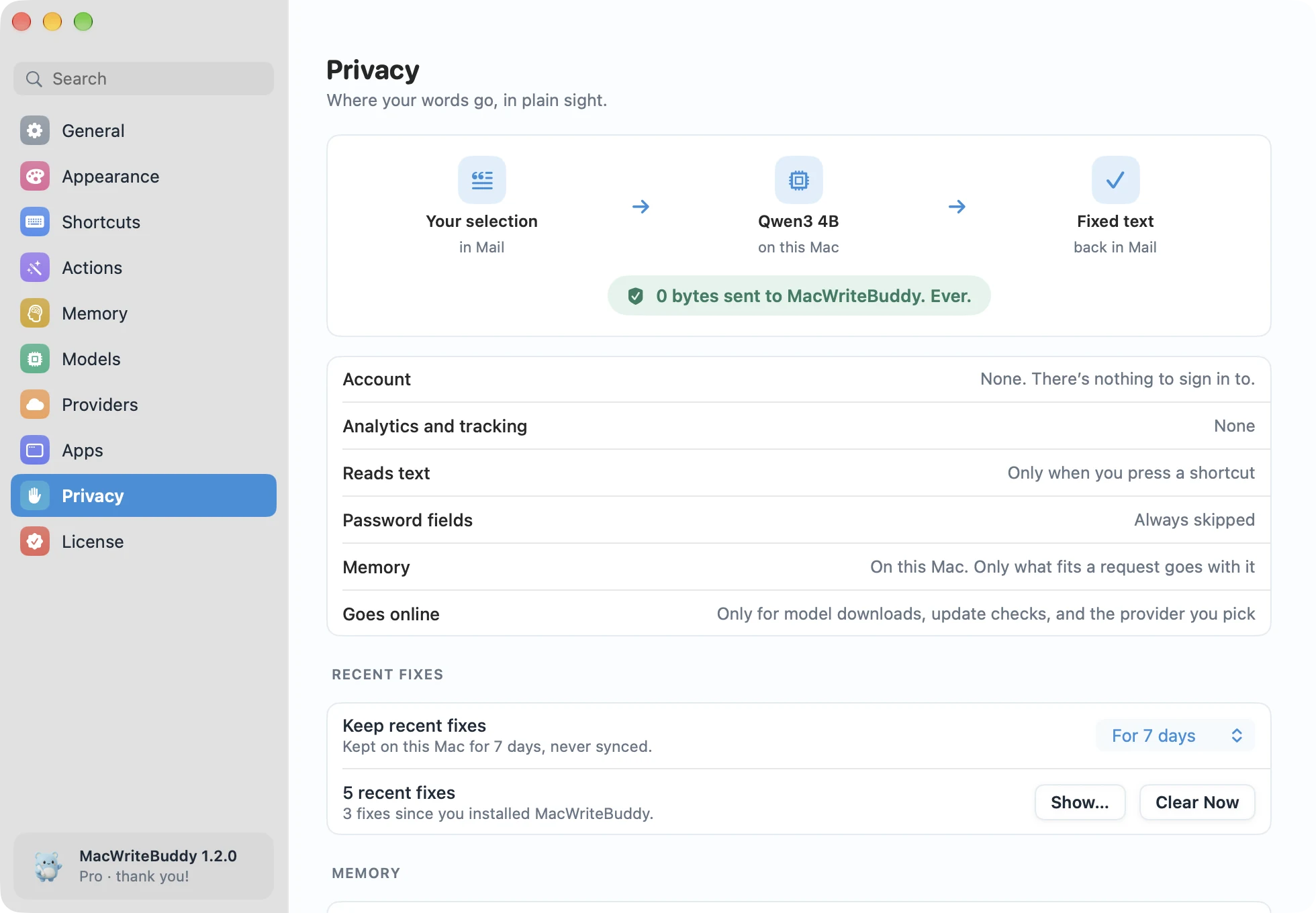
In MacWriteBuddy: MacWriteBuddy has no server that receives your writing. It reads only the text you select, only when you press the shortcut, and always skips password fields. With a local model, nothing leaves your Mac. With a cloud provider and your own API key, your text goes straight to that provider, which does see it, under that provider’s terms.
Sources
- Grammarly: How we protect your privacy
- Grammarly Support: Product Improvement and Training controls
- Grammarly Support: Can I use Grammarly offline?
- Superhuman Privacy Policy (effective July 6, 2026)
- Engadget: Grammarly has rebranded to Superhuman (Oct 29, 2025)
- OpenAI Help: Data controls in ChatGPT
- OpenAI Help: How your data is used to improve model performance
- OpenAI Help: Temporary chat in ChatGPT
- OpenAI Help: Chat and file retention policies in ChatGPT
- OpenAI API docs: Your data
- Anthropic: Updates to Consumer Terms and Privacy Policy (Aug 28, 2025)
- Anthropic Privacy Center: Is my data used for model training? (consumer)
- Anthropic Privacy Center: Is my data used for model training? (commercial)
- Google: Gemini Apps Privacy Hub
- Gemini Apps Help: Manage and delete your activity in Gemini Apps
- Apple: Apple Intelligence and privacy
- Apple: ChatGPT extension and privacy
- Apple Support: Use Writing Tools on Mac
- Google Chrome Help: Use spell check
- ABA Formal Opinion 512: Generative Artificial Intelligence Tools (July 29, 2024)
- JD Supra: American Bar Association issues formal opinion on use of generative AI tools
- Ollama docs: FAQ