Can you get Apple Intelligence on an Intel Mac?
No. Apple lists a Mac with M1 or later as the requirement for Apple Intelligence, and that covers everything built on it: Apple’s Writing Tools, proofreading as you type in macOS 27, Write with Siri, and the ChatGPT extension. There’s no setting or update that turns it on for an Intel Mac, so be wary of any guide that promises a workaround.
Apple Intelligence first reached the Mac with macOS Sequoia 15.1 in October 2024, and it has needed Apple silicon from the start. Apple’s Apple Intelligence requirements page still lists M1 or later as of October 2026.
Why Intel Macs are left out
Apple hasn’t said why. It simply lists M1 or later as the requirement.
The usual explanation comes from the tech press. TechRadar wrote in 2024 that the Intel processors in Macs have no neural processing unit (NPU), the part of a chip built to run AI models efficiently. Apple’s version is called the Neural Engine, and TechRadar notes that M1 was the first Mac chip to have one. Without it, the work would fall on the main processor, which TechRadar argued would be far too slow for AI features to run on the Mac itself.
macOS 27 ends Intel support: what it means for your Mac
macOS 27 Golden Gate came out on September 14, 2026, and runs only on Apple silicon: Macs with M1 or later, plus the MacBook Neo. macOS Tahoe 26 is the last version for Intel Macs. According to MacRumors, Apple said Intel Macs will keep getting security updates for three years.
These four Intel Macs run Tahoe, the last macOS they’ll get:
- MacBook Pro (13-inch, 2020, Four Thunderbolt 3 ports)
- MacBook Pro (16-inch, 2019)
- iMac (Retina 5K, 27-inch, 2020)
- Mac Pro (2019)
Older Intel Macs stopped at earlier versions. That matters for the apps below, several of which need macOS 14 Sonoma or later. Sonoma runs on Intel Macs back to the 2018 MacBook Air, MacBook Pro, and Mac mini, the 2019 iMac, and the 2017 iMac Pro.
How to check whether your Mac has Intel or Apple silicon
- Choose Apple menu › About This Mac.
- Look for a line called Chip or Processor. Chip followed by a name like Apple M1 means Apple silicon. Processor followed by an Intel name means an Intel Mac.
- Note the macOS version in the same window. You’ll need it for the requirements below.
Apple explains this on its Mac computers with Apple silicon page.
What you can use on an Intel Mac instead
Here’s what works on Intel for proofreading and AI writing, with each maker’s stated requirements as of October 2026:
| Tool | What it does | On an Intel Mac | Where your text goes |
|---|---|---|---|
| macOS spelling and grammar checker | Underlines spelling and grammar mistakes | Built into every Mac | Your Mac |
| Grammarly | Spelling, grammar, and AI suggestions as you type | macOS 11 or later; Intel Macs from 2018 or newer | Grammarly’s servers |
| Harper Desktop | Grammar checking in the apps where you write, English only | macOS 14 or later; Intel supported | Stays on your Mac |
| ChatGPT app | AI chat for drafting and rewriting | macOS 14 or later; Intel supported | OpenAI |
| Claude app | AI chat for drafting and rewriting | macOS 13 or later; no chip listed | Anthropic |
| Ollama | Runs open AI models on your computer | macOS 14 or later; CPU only | Your Mac or your network |
| LM Studio | Runs open AI models on your computer | Not supported | Not applicable |
| MacWriteBuddy | Fixes and rewrites selected text in any app | macOS 14 or later; Intel supported | Your Mac, your network, or the provider you choose |
The built-in spelling and grammar checker
Every Mac has one, Intel included. In most apps, choose Edit › Spelling and Grammar and turn on Check Grammar With Spelling. Misspellings get a red underline and grammar problems a blue dotted one. Our guide covers how to spell check and grammar check on a Mac.
Grammarly, Harper, and LanguageTool
Grammarly for Mac needs macOS 11 or later and supports Intel Macs from 2018 on. Harper Desktop is free and open source, checks everything on your Mac, and supports Intel on macOS 14 or later, though it only handles English. LanguageTool has a Mac app too, but its Mac page doesn’t list chip requirements, so check before you install. For a side-by-side look, see our Grammarly alternatives for Mac.
ChatGPT and Claude
OpenAI says its ChatGPT Mac app needs macOS 14 and runs on Apple silicon or Intel. Anthropic lists macOS 13 Ventura or later for the Claude app and doesn’t mention a chip. Both also work in a web browser. Since they’re chat apps, fixing text you wrote elsewhere mostly means copying it in and pasting the result back.
Local AI models
You can run open models on an Intel Mac, with lower expectations. Ollama needs macOS 14 or later and uses only the CPU on Intel, while Apple silicon Macs also get the GPU. LM Studio doesn’t support Intel Macs at all. Small models of a few billion parameters are your best bet on Intel. Our guide shows how to run an LLM locally on a Mac.
MacWriteBuddy (our app)
MacWriteBuddy runs on macOS 14 Sonoma or later, on Intel and Apple silicon. Select text in any app and press ⌃⌥G to fix spelling and grammar, with a preview of every change; that part is free. On an Intel Mac, the quick setups are your own API key for a cloud provider such as OpenAI, Anthropic, or Google Gemini, or an Ollama server on another computer. Its Apple Intelligence option uses Apple’s on-device model, so it isn’t available on Intel. Local models run best on Apple silicon with 8 GB of memory or more.
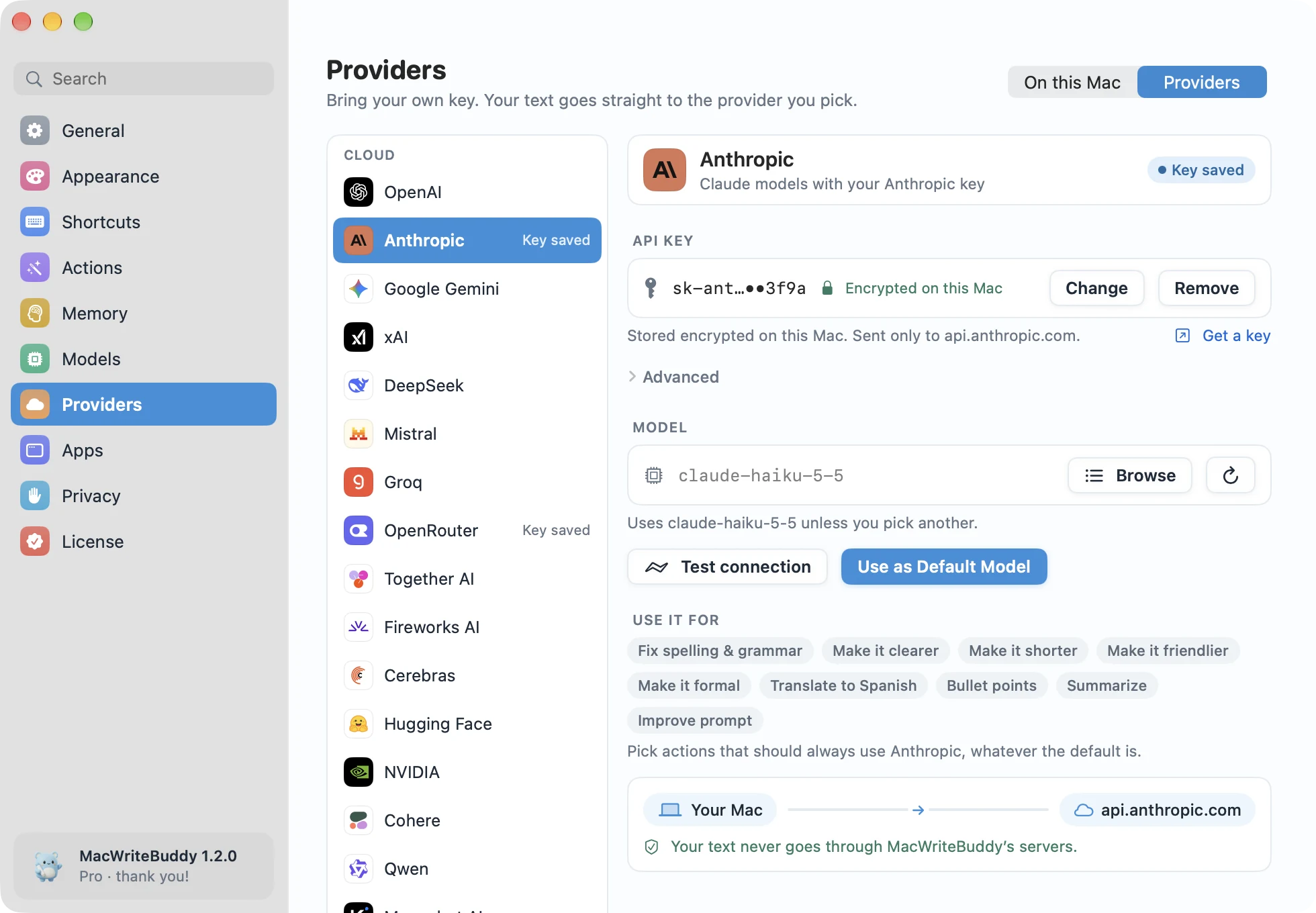
With your own key, text goes straight from your Mac to that provider, never through MacWriteBuddy’s servers. Bring your own key explains the setup, and the grammar checker page shows how fixes work. Or download MacWriteBuddy and try it.
Run AI models on a faster computer for your Intel Mac
If you have a faster machine at home or at work, such as an Apple silicon Mac, let it do the heavy lifting. Ollama can serve models to other computers on your network, so your Intel Mac only sends the text and gets the answer back.
- On the faster computer, install Ollama and download a model, for example with
ollama pull qwen3:4b. - Ollama only listens to its own computer by default (127.0.0.1, port 11434). On a Mac, open Terminal, run
launchctl setenv OLLAMA_HOST "0.0.0.0:11434", then quit and reopen Ollama. On Windows or Linux, set the sameOLLAMA_HOSTvariable as Ollama’s FAQ describes. - Find that computer’s local IP address in its network settings, such as 192.168.1.20.
- On your Intel Mac, point your app at that address on port 11434, for example
http://192.168.1.20:11434. Apps that use Ollama’s OpenAI-compatible API, MacWriteBuddy included, want/v1on the end:http://192.168.1.20:11434/v1.
Note: This makes Ollama reachable from every device on your network, and its server has no password of its own. Only do it on a network you trust, like your home Wi-Fi, never on public Wi-Fi.
In MacWriteBuddy: Ollama is one of the built-in providers, so you can point MacWriteBuddy at a server on your own network and fix text in any app with ⌃⌥G. Your text stays on your own hardware. Read more about the offline grammar checker.
Should you upgrade to an Apple silicon Mac?
Not for writing help alone: the tools above cover proofreading and AI writing on Intel. An upgrade makes sense when you want what only Apple silicon gets.
| Feature | Intel Mac | Mac with M1 or later |
|---|---|---|
| Apple Intelligence and Writing Tools | No | Yes |
| macOS 27 and later | No; Tahoe 26 is the last | Yes |
| Security updates | Three more years, Apple said | Continue with new macOS versions |
| Ollama | CPU only | CPU and GPU |
| LM Studio | Not supported | Supported |
If you do upgrade, any Mac with M1 or later runs Apple Intelligence, which needs up to 8 GB of storage (up to 14 GB on M3 or later with 12 GB of memory or more). For local models, more memory helps: LM Studio recommends 16 GB or more.
Sources
- Apple Support: How to get Apple Intelligence
- Apple Newsroom: Apple Intelligence is available today (October 28, 2024)
- Apple: macOS 27 compatible devices
- Apple Support: macOS Tahoe is compatible with these computers
- Apple Support: macOS Sonoma is compatible with these computers
- Apple Support: Mac computers with Apple silicon
- Apple Support: Check spelling and grammar on Mac
- MacRumors: macOS 27 Golden Gate release date (September 10, 2026)
- TechRadar: Apple Intelligence isn’t coming to Intel-based Macs (June 11, 2024)
- Grammarly Support: System requirements for Grammarly for Mac
- Harper: Harper Desktop
- LanguageTool: Grammar checker for macOS
- OpenAI Help Center: Downloading the ChatGPT macOS app
- Claude Help Center: Install Claude Desktop
- Ollama docs: Ollama on macOS
- Ollama docs: FAQ
- LM Studio docs: System requirements