What makes a local LLM good for writing
Most “best local LLM” lists rank models for coding or chat. Fixing an email asks for something different, and a small model that follows instructions closely can suit it better than a big one that likes to improvise. Look for these five things:
- It does what you ask, and only that. “Fix the grammar” shouldn’t come back as a rewrite, or with a chatty “Sure! Here’s your corrected text” on top.
- It keeps your meaning and voice. A good fix turns “their” into “there”. It leaves your opinion and your sign-off alone.
- It stays in your language. Write in German and you should get German back, not an English translation.
- It’s quick. Grammar fixes are short jobs, and smaller models answer sooner. When you just want to hit send, speed matters.
- It knows your languages. Model cards differ a lot here: some list eight official languages, others well over a hundred.
Some newer models also “think” before they answer. Qwen3 can switch between thinking and non-thinking modes, and Qwen3.5 thinks by default, according to their model cards. That helps with puzzles, but for a one-sentence fix it mostly means more waiting.
How much RAM you need for a local LLM on a Mac
On Apple silicon, a model shares your Mac’s memory with macOS and every app you have open. So the question isn’t just “does it fit?” but “does it fit next to Safari, Mail, and Slack?”
Note: This is a rule of thumb, not a spec. Plan for the model’s download size, plus 1–2 GB for the text it’s working on (its context), plus whatever macOS and your apps already use. A longer context needs more memory.
- 8 GB: models with downloads up to about 3.5 GB. LM Studio recommends 16 GB or more, and on 8 GB Macs suggests smaller models with modest context sizes.
- 16 GB: 7–12B models (roughly 4–8 GB downloads), with room left for your everyday apps.
- 24 GB and up: 14B models with plenty of headroom. The 26–31B models (16–20 GB downloads) are a squeeze on 24 GB and comfortable on 32 GB or more.
To check your memory, choose Apple menu › System Settings › General › About and read the Memory line (Apple’s guide). Then, while a model is answering, open Activity Monitor and click Memory. If Swap Used keeps climbing, your Mac is short of memory (what the Memory pane shows). Try a smaller model or close a few apps.
Best local LLMs for an 8 GB Mac
With 8 GB, look at models with 3–4 billion parameters. All four below are 2–3.4 GB downloads on Ollama, small enough to leave room for your other apps.
Qwen3 4B: the all-rounder
A 2.5 GB download under the Apache 2.0 license, with support for 100+ languages and dialects. It’s our default suggestion for an 8 GB Mac: small, permissively licensed, and multilingual.
Llama 3.2 3B: the lightest
At 2.0 GB, Meta’s 3B model is the smallest download here, and it’s what ollama run llama3.2 gets you. It officially supports eight languages: English, German, French, Italian, Portuguese, Hindi, Spanish, and Thai. It uses the Llama 3.2 Community License.
Phi-4-mini: the MIT-licensed one
Microsoft’s 3.8B model is a 2.5 GB download with a 128K context and the permissive MIT license. Its model card lists 23 languages, from Arabic to Ukrainian.
Gemma 3 4B: for many languages
Google’s 4B model lists support for over 140 languages, the longest list of these four. It’s also the biggest download here (3.4 GB on Ollama), and it can read images too. It’s released under Google’s Gemma Terms of Use.
Best local LLMs for a 16 GB Mac
With 16 GB, you can step up to 7–12B models and keep your other apps open. Bigger models tend to handle rewrites and tone changes more gracefully, but they’re also slower, so test before you commit.
- Qwen3 8B (5.2 GB): the next step up from Qwen3 4B, with the same Apache 2.0 license and 100+ languages.
- Qwen3.5 9B (6.6–7.6 GB): newer, with a 256K context and 201 languages and dialects. It thinks by default, so expect slower answers. Its 4B sibling (3.3–4.0 GB) also fits on 8 GB.
- Gemma 3 12B (8.2 GB) or Gemma 4 12B (7.7–8.0 GB): good picks if you write in several languages. Gemma 4 uses the Apache 2.0 license; Gemma 3 uses Google’s Gemma Terms of Use.
- Mistral 7B (4.4 GB): older (v0.3 dates from May 2024) with a 32K context, but compact and Apache 2.0 licensed.
Best local LLMs for 24 GB and up
With 24 GB or more, mid-size models fit with room to spare, and the biggest ones here fit best with 32 GB.
- Qwen3 14B (9.3 GB): plenty of headroom on 24 GB, with a 40K context on Ollama.
- Gemma 3 27B (17 GB): the largest Gemma 3, with the same 140+ languages.
- Gemma 4 26B (16–19 GB) or 31B (19–20 GB): Google’s newest, Apache 2.0 licensed, with a 256K context. The 26B is a mixture-of-experts model (26B in total, about 4B active), so it needs the memory of a big model but does less work per word.
Bigger isn’t automatically better for grammar. A 27B model takes longer to answer a one-line fix, so a sensible setup is a small model for quick fixes and a bigger one for rewrites and long documents.
Local LLMs for writing compared
Download sizes and context windows are as listed on Ollama’s library pages in October 2026; languages and licenses come from each model card. Other apps and file formats list different sizes.
| Model | Ollama download | Context | Languages | License |
|---|---|---|---|---|
| Llama 3.2 3B | 2.0 GB | 128K | 8 official | Llama 3.2 Community License |
| Qwen3 4B | 2.5 GB | 256K | 100+ | Apache 2.0 |
| Phi-4-mini (3.8B) | 2.5 GB | 128K | 23 | MIT |
| Gemma 3 4B | 3.4 GB | 128K | 140+ | Gemma Terms of Use |
| Qwen3.5 4B | 3.3–4.0 GB | 256K | 201 | Apache 2.0 |
| Mistral 7B | 4.4 GB | 32K | Not listed | Apache 2.0 |
| Qwen3 8B | 5.2 GB | 40K | 100+ | Apache 2.0 |
| Qwen3.5 9B | 6.6–7.6 GB | 256K | 201 | Apache 2.0 |
| Gemma 4 12B | 7.7–8.0 GB | 256K | 35+ (trained on 140+) | Apache 2.0 |
| Gemma 3 12B | 8.2 GB | 128K | 140+ | Gemma Terms of Use |
| Qwen3 14B | 9.3 GB | 40K | 100+ | Apache 2.0 |
| Gemma 4 26B | 16–19 GB | 256K | 35+ (trained on 140+) | Apache 2.0 |
| Gemma 3 27B | 17 GB | 128K | 140+ | Gemma Terms of Use |
Tip: Free to download doesn’t always mean free for any use. If you’ll use a model at work or in a product, read its license first.
Test a local LLM on your own writing
There’s no public benchmark that ranks these models on grammar correction, so the best test is your own text. Paste this prompt into the chat window of the Ollama or LM Studio app, once for each model you’re considering:
Fix the spelling, grammar, and punctuation in the text below.
Keep my wording, tone, and language, and change nothing else.
Reply with the corrected text only.

hi Priya, thanks for sending the report on friday.
Me and Tom has read it and their are a few numbers to check.
The forecast in section 3 look optimistic, its based on last years growth.
Can we move our call to Thursday, I have a clash on Wednesday.
Cheers, Sam- BEFORE
- hi Priya, thanks for sending the report on friday. Me and Tom has read it and their are a few numbers to check. The forecast in section 3 look optimistic, its based on last years growth. Can we move our call to Thursday, I have a clash on Wednesday. Cheers, Sam
- AFTER A GOOD FIX
- Hi Priya, thanks for sending the report on Friday. Tom and I have read it, and there are a few numbers to check. The forecast in section 3 looks optimistic; it’s based on last year’s growth. Can we move our call to Thursday? I have a clash on Wednesday. Cheers, Sam
Score each answer on four things:
- Every mistake fixed: the capitals, “Tom and I have”, “there are”, “looks”, “it’s”, “last year’s”, and the two run-on sentences.
- Nothing else changed: the casual tone and “Cheers, Sam” should survive.
- No extra chatter: just the text, with no “Here’s the corrected version” on top.
- Fast enough to use: if you’re waiting long enough to get bored, try a smaller model.
Tip: Write in another language? Swap in a paragraph of your own, with a few typos, and check that the model answers in that language instead of translating it into English.
How to run these models on your Mac
The easiest free way to try any of them is Ollama or LM Studio, and our step-by-step guide to running an LLM locally on a Mac covers both. With Ollama installed, you pull a model by its tag and chat with it:
ollama pull qwen3:4b
ollama run qwen3:4b
Note: On an Intel Mac, Ollama runs on the CPU only, so even small models are slow, and LM Studio doesn’t support Intel Macs at all. Here’s what Intel Mac owners can use instead.
Use a local model for writing in every Mac app
A chat window is fine for testing, but copying text in and out gets old fast. MacWriteBuddy brings a local model to every app you write in: select text in Mail, Slack, Notes, or your browser, press ⌃⌥G, check the preview, and the fixed version replaces your text.
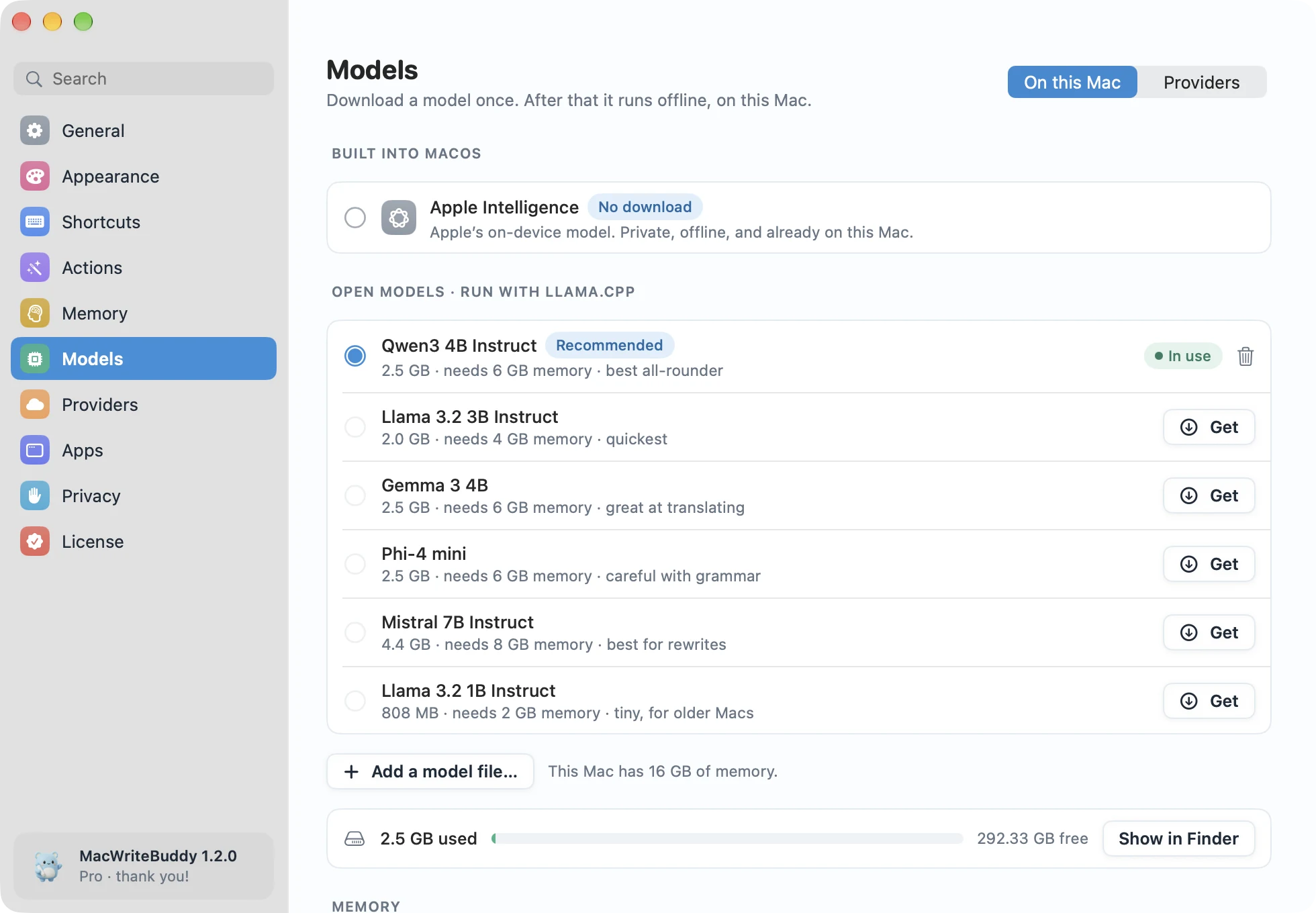
In MacWriteBuddy: Settings › Models has a short list of small models picked for writing (Qwen3 4B, Llama 3.2, Gemma 3, Phi-4 mini, and Mistral 7B), with the download size and memory each one needs. Download one with a click, or connect Ollama or LM Studio to use any model above. Fixing spelling and grammar is free, forever.
With a local model, your words never leave your Mac; see how the offline grammar checker works. If you’d rather use a big cloud model for long rewrites, you can bring your own API key instead. Still comparing tools? Our roundup of Grammarly alternatives for Mac covers the wider field.
Sources
- Ollama: Qwen3
- Ollama: Qwen3.5
- Ollama: Llama 3.2
- Ollama: Phi-4-mini
- Ollama: Gemma 3
- Ollama: Gemma 4
- Ollama: Mistral
- Hugging Face: Qwen3-4B model card
- Hugging Face: Qwen3-8B model card
- Hugging Face: Qwen3-14B model card
- Hugging Face: Qwen3.5-9B model card
- Hugging Face: Llama 3.2 3B Instruct model card
- Hugging Face: Phi-4-mini-instruct model card
- Hugging Face: Gemma 3 4B model card
- Hugging Face: Gemma 4 26B A4B model card
- LM Studio: System requirements
- Ollama docs: macOS
- Ollama docs: FAQ
- Apple Support: View About settings on Mac
- Apple Support: View memory usage in Activity Monitor