Why AI prompts go wrong
A chatbot can’t see your screen, your inbox, or your head. When a prompt leaves something out, the model fills the gap with the most generic guess, and you get a generic answer. Most weak prompts are missing one of three things:
- A clear task. “Write something about our launch” could mean a tweet, a press release, or a poem.
- Context. Who it’s for, what it’s for, and what you already know or tried.
- A format. How long, what structure, what tone, and what to leave out.
Anthropic’s guide suggests thinking of the model as a brilliant new employee who doesn’t know your norms or workflows yet. The more precisely you explain what you want, the better the result.
How to write better prompts for AI: a 4-part template
Google’s prompting guide names four areas to consider when you write a prompt: persona, task, context, and format. OpenAI’s prompt engineering guide structures instructions in a similar way (identity, instructions, examples, and context), and Anthropic’s best practices tell you to give Claude a role, be clear and direct, add context, and be specific about the output format.
| Part | What to include | Example |
|---|---|---|
| Role | Who the AI should act as, or whose expertise you want | “You’re an experienced tech recruiter.” |
| Task | One clear verb and the thing you want back | “Rewrite the opening paragraph of my cover letter.” |
| Context | Audience, purpose, background, and what matters most | “It’s for a product designer role at a 40-person fintech startup. I’m moving from agency work and want that to read as a strength.” |
| Format and limits | Length, structure, tone, and anything to avoid | “Give me three versions, each under 60 words. Confident, plain English, no buzzwords.” |
You won’t need every part every time. A quick factual question needs only the task. But the more the answer depends on your situation, the more context pays off, and context is the easiest part to forget, because it’s obvious to you.
A prompt template you can copy
You’re [a role, like “an experienced editor for B2B newsletters”].

Task: [what you want, starting with a verb: write, rewrite, summarize, compare, plan].

Context:
- Audience: [who will read or use this]
- Goal: [what it’s for, and what a good result looks like]
- Background: [facts, constraints, what you’ve already tried]

Format: [length, structure, and tone]. Avoid [anything you don’t want].

If something important is missing, ask me before you start.
The last line is optional, but handy for bigger jobs: instead of guessing, the AI asks for what it needs.
In MacWriteBuddy: Tired of typing the same background into every prompt? With Memory, part of Pro, tell MacWriteBuddy once, like “I’m an iOS developer”, and Improve prompt adds that context when it helps. Memories are stored only on your Mac.
Six prompt engineering tips from the AI companies’ own guides
1. Be clear and specific
Anthropic’s first principle is to be clear and direct, and Google’s guide says to tell the model exactly what you need it to do: summarize, write, change the tone. Swap vague words for numbers: “a 150-word summary”, not “a short summary”; “three options”, not “some ideas”.
2. Explain why
A reason helps the model make good choices you didn’t spell out. Anthropic’s example: instead of only banning ellipses, explain that the answer will be read aloud by a text-to-speech engine that can’t pronounce them. The model can then generalize from the explanation.
3. Show an example
If tone or format matters, show it. Anthropic recommends 3–5 examples for best results, and OpenAI suggests showing “a diverse range of possible inputs with the desired outputs”. In an everyday chat, pasting a paragraph or two in the voice you want is a good start.
4. Separate instructions from material
When you paste in an email, a report, or code, mark where it starts and ends so the model doesn’t mistake it for instructions. OpenAI and Anthropic both suggest XML-style tags (Anthropic’s examples include <context> and <instructions>), and OpenAI mentions Markdown headings too. In a chat, a clear label like “Email to reply to:” above the pasted text is an easy way to do it.
Note: The guides differ on one detail. For long documents, Anthropic suggests putting the document above your question, while OpenAI’s guide places reference context near the end of the prompt. If answers miss the point on a long paste, try the other order.
5. Name the output format
Say what you want back: a table, three bullet points, a 100-word email, a numbered plan. Anthropic also advises saying what to do rather than what not to do: ask for “smoothly flowing prose paragraphs” instead of “do not use markdown”.
6. Iterate in the same chat
Treat the first answer as a draft. Google’s guide suggests making it a conversation and refining your prompt when the result misses. Follow-ups like “shorter”, “more formal”, or “three more like option 2” are often quicker than starting over.
Before and after: 5 better prompts
An email
- BEFORE
- write an email to my landlord about the broken heater
- AFTER ADDING CONTEXT AND LIMITS
- Write a short, polite but firm email to my landlord. The heater in my apartment (unit 4B) has been broken since November 3, and I reported it by phone on November 4 but haven’t heard back. At night the apartment drops to 58°F. Ask for a repair date within the next three days. Keep it under 150 words, no threats, and end by thanking them.
The rewrite adds the facts only you know, the outcome you want, and the tone. For polishing the email itself, see our guide to making an email sound more professional.
Code
This is the example MacWriteBuddy uses for its Improve prompt action. The rewrite adds the platform, what the screen should contain, how the toggle should behave, and how to deliver the code.
- BEFORE
- make me a swiftui settings screen dark mode
- AFTER IMPROVE PROMPT
- Build a Settings screen in SwiftUI for my macOS app. Include a sidebar of panes and a dark mode toggle that follows the system by default. Use native controls, keep the code in one file, and briefly explain anything non-obvious.
A summary
- BEFORE
- summarize this report
- AFTER ADDING AUDIENCE AND FORMAT
- Summarize the quarterly report below for our sales team, who haven’t read it. Start with the one change that affects them most, then list up to five things they should act on, one line each. Skip the methodology. If a number is unclear, say so instead of guessing. Report: [pasted report]
Research
- BEFORE
- whats the best laptop for college
- AFTER ADDING CONSTRAINTS
- Help me choose a laptop for college. I’m starting a graphic design degree, my budget is $1,200, and I care most about the screen and battery life. I already use an iPhone. Compare three options in a table (price, screen, battery life, weight, why it suits me), then recommend one. Flag any specs that might be out of date.
An image
- BEFORE
- logo for my bakery
- AFTER ADDING STYLE AND FORMAT
- Design a simple logo for a neighborhood bakery called Maple Street Bakery. A warm, hand-drawn feel, with a wheat stalk or a loaf as the icon. Two colors at most, cream and dark brown, and the name in a friendly serif typeface. Plain background, square, and readable at small sizes.
Run the colleague test before you send
Anthropic’s guide has a simple check: show your prompt to a colleague who knows little about the task and ask them to follow it. “If they’d be confused, Claude will be too.” There’s nothing Claude-specific about it.
Picture a smart coworker who’s never heard of your project. What would they ask? Answer those questions in the prompt:
- Who is this for?
- What is it for, and what does a good result look like?
- How long should it be, and in what format?
- What have you already tried or ruled out?
- What should it avoid?
Save your best prompts on a Mac with text replacements
If you reuse a prompt, don’t retype it. macOS text replacements turn a short abbreviation into a longer piece of text as you type. To add one on macOS 27:
- Choose Apple menu › System Settings, then click Keyboard in the sidebar. You may need to scroll down.
- Click Text Replacements.
- Click the Add button (
+), type the abbreviation to replace, then type or paste the prompt as its replacement. Click Add. - Click Done.
Now type the abbreviation and macOS swaps in the full prompt. A few worth saving:
| Type | To get |
|---|---|
;edit | You’re a careful copy editor. Fix grammar, spelling, and clarity in the text below without changing its meaning or tone. Then list each change you made. |
;sum | Summarize the text below in three bullet points for someone who hasn’t read it. Lead with any decisions or deadlines. |
;ask | Before you answer, ask me any questions you need to give a specific, useful answer. |
Tip: Start each abbreviation with a character you rarely type, like a semicolon, so it never expands by accident. Apple notes that text replacements aren’t available in all apps.
Improve a rough prompt without leaving the chat box
If you’d rather not fill in the template every time, MacWriteBuddy’s prompt improver does the rewriting for you. Type a rough request into ChatGPT, Claude, Gemini, Perplexity, Cursor, or any AI chat box on your Mac, select it, and press ⌃⌥I. It rewrites the request in place as a clear prompt (what you want, the context, any limits, and the format), keeps your intent, details, and language, and never answers it for you.
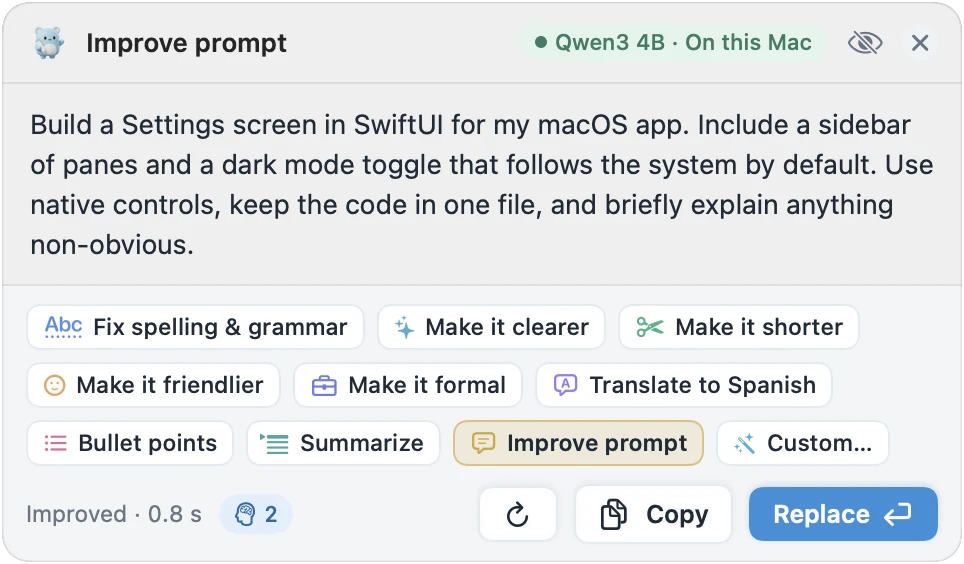
Improve prompt is part of MacWriteBuddy Pro, a one-time payment of $39 (usually $79); fixing spelling and grammar stays free. It uses the model you choose: a small model on your Mac (see the best local LLMs for writing), Apple Intelligence on macOS 26 or later, or your own key for OpenAI, Anthropic, Google Gemini, and more.